Choose software · Uniwor resources
Cloud accounting software for work beyond one desk.
Being able to open a system from another device is only the start. Choose online business tools around access, everyday tasks and the information you need to keep working.
- Cloud vs desktop
- Access checklist
- Rollout planning
By Uniwor · Updated
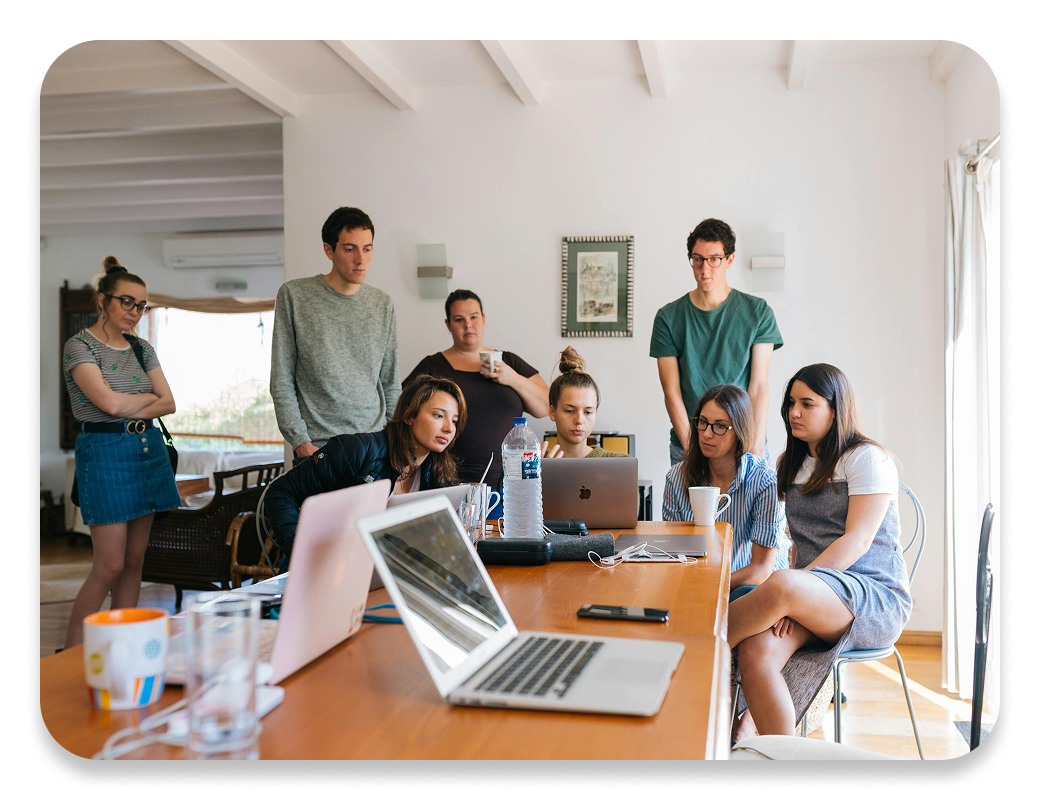
A clear starting point
What is cloud accounting software?
Cloud accounting software is hosted online and accessed through an internet-connected browser or app. It changes where the software runs and how users reach their records. The available accounting features, security controls and offline options depend on the provider and subscription.
Cloud describes a delivery model, not a promise that every financial task is automated. Evaluate the tasks you need, the devices your team uses and the arrangements for accessing your information if requirements change.
What to look out for
Choose an online workflow with the details in mind.
Access works on a laptop but not in the field
Test your real tasks on the phones and browsers your team uses. A page that opens successfully may still be awkward for entering a long invoice or reviewing a report on a smaller screen.
A shared login becomes the default
Plan individual staff access and confirm the provider’s available controls. Agree who creates, changes and removes accounts. The number of included users does not tell you which permissions can be assigned.
Nobody asks about leaving the system
Before adoption, ask how records can be exported, how long data remains accessible and what happens when a subscription ends. Get specific answers rather than assuming all online products work the same way.
Put it into practice
Cloud accounting vs desktop software
These are common delivery-model differences. Individual products can offer hybrid approaches or additional features.
| Question | Cloud model | Locally installed desktop model |
|---|---|---|
| Where do you work? | Usually through a browser or supported app. | Usually on a computer with the software installed. |
| How do others get access? | Provider-managed accounts and subscription options. | Depends on local, network or remote-access arrangements. |
| Who manages updates? | The provider generally operates the hosted application. | Updates may need to be installed or managed locally. |
| What happens without internet? | Offline capability must be checked; do not assume it. | Some local tasks may work offline, depending on the product. |
Neither model is automatically more secure or more suitable. Assess the provider, configuration, data handling and your own working practices.
A practical example
Example: test a business that works on the move
An owner visits customers while an administrator works from the office. They want to avoid passing updated files back and forth.
Owner’s test
Create or review a representative invoice on the phone normally used between appointments.
Administrator’s test
Review the relevant record from a separate staff account and confirm how the handoff should work.
Manager’s test
Open the required report on an eligible plan and check that it supports the regular business review.
Test the complete handoff between people and devices. A successful login is not the same as a successful working process.
Your next steps
Move online with a clear access plan.
- 01
List people, devices and tasks
Identify who needs to work in the platform and what each person needs to do. Include people away from the office and any advisers who require information.
- 02
Verify access and data arrangements
Ask about available account controls, data handling, export options and support. Check connectivity requirements and the exact mobile experience before relying on them.
- 03
Start with one shared routine
Pilot a repeatable task such as invoicing and payment review. Agree responsibility for record updates and resolve handoff questions before moving more work into the system.
From learning to doing
Explore Uniwor’s online business workflow
Uniwor provides an online platform for invoices, expenses and payment follow-ups, with a mobile-optimized experience. Staff accounts and reporting options let you evaluate a shared workflow as your business grows.
- Online access to invoicing and expense tracking
- Mobile-optimized business administration
- Staff accounts and advanced reports on eligible plans
Your questions, answered
Cloud accounting software: FAQs
Practical answers to help you choose your next step.
Is online accounting the same as cloud accounting?
The terms commonly describe accounting software accessed over the internet. Capabilities vary, so verify your required workflow, reports and data arrangements with each provider.
Can I use cloud software without internet?
Only if the product explicitly supports the offline tasks you need. Uniwor’s published feature information does not confirm offline operation, so plan around online access unless the team confirms otherwise.
Is cloud accounting automatically secure?
No delivery model guarantees security by itself. Review the provider’s controls and policies, the available account protections and how your team handles access. Ask for evidence appropriate to your requirements.
Can multiple people use Uniwor?
Yes, eligible plans include staff accounts. Startup lists 3, Growth lists 10 and Enterprise lists unlimited staff accounts. Confirm the access controls and account arrangements your team needs.
Can I move records from another system?
Migration depends on the source data and the import methods supported by the destination. Confirm the supported formats and process with Uniwor before assuming an automatic migration is available.
Sources and further reading
General business guidance, with original examples from Uniwor. Product capabilities are based on Uniwor’s published features and plan comparison.
- Wolters Kluwer: cloud accounting overview
Background on online versus locally installed accounting software; vendor-specific features are not Uniwor claims.
- Uniwor features · Current plan comparison